Editing your profile
You can update your first name, last name, username, and avatar from the Account page. Email is display-only and cannot be edited there.
Email cannot be changed right now
You are currently unable to change the email on your account from dropletPRO. Email is shown as read-only (with a verified or not-verified status). This may change in a future update. Contact support if you need help with your sign-in email.
Open Account
Go to Account from the navigation drawer or your profile menu.
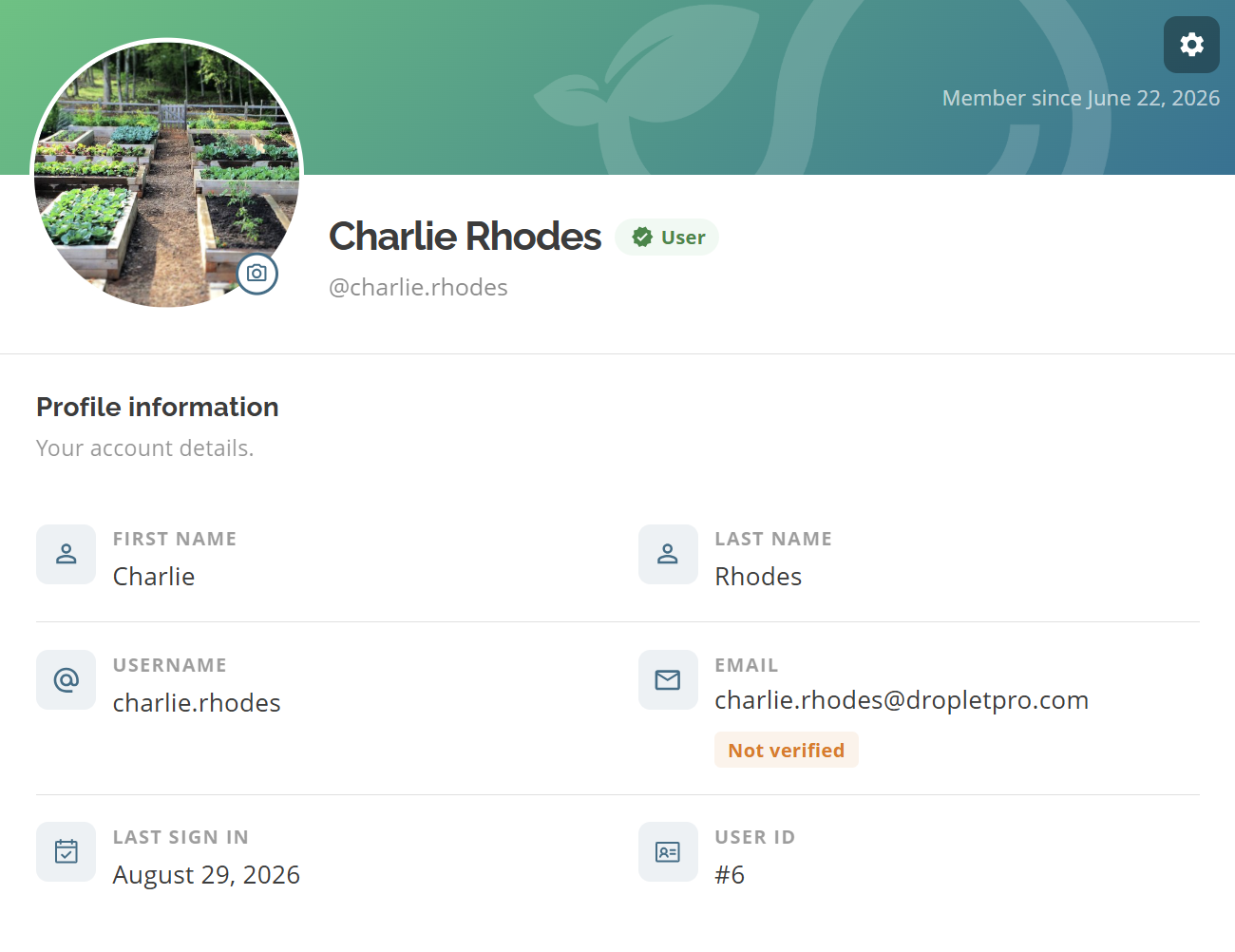
Profile information (view mode)
Edit profile details
Click the settings icon on the Profile information card to open Account actions, then choose Edit profile. Update First name, Last name, and Username as needed. First and last name are required (up to 30 characters each). Username is required and must be 3–30 characters.
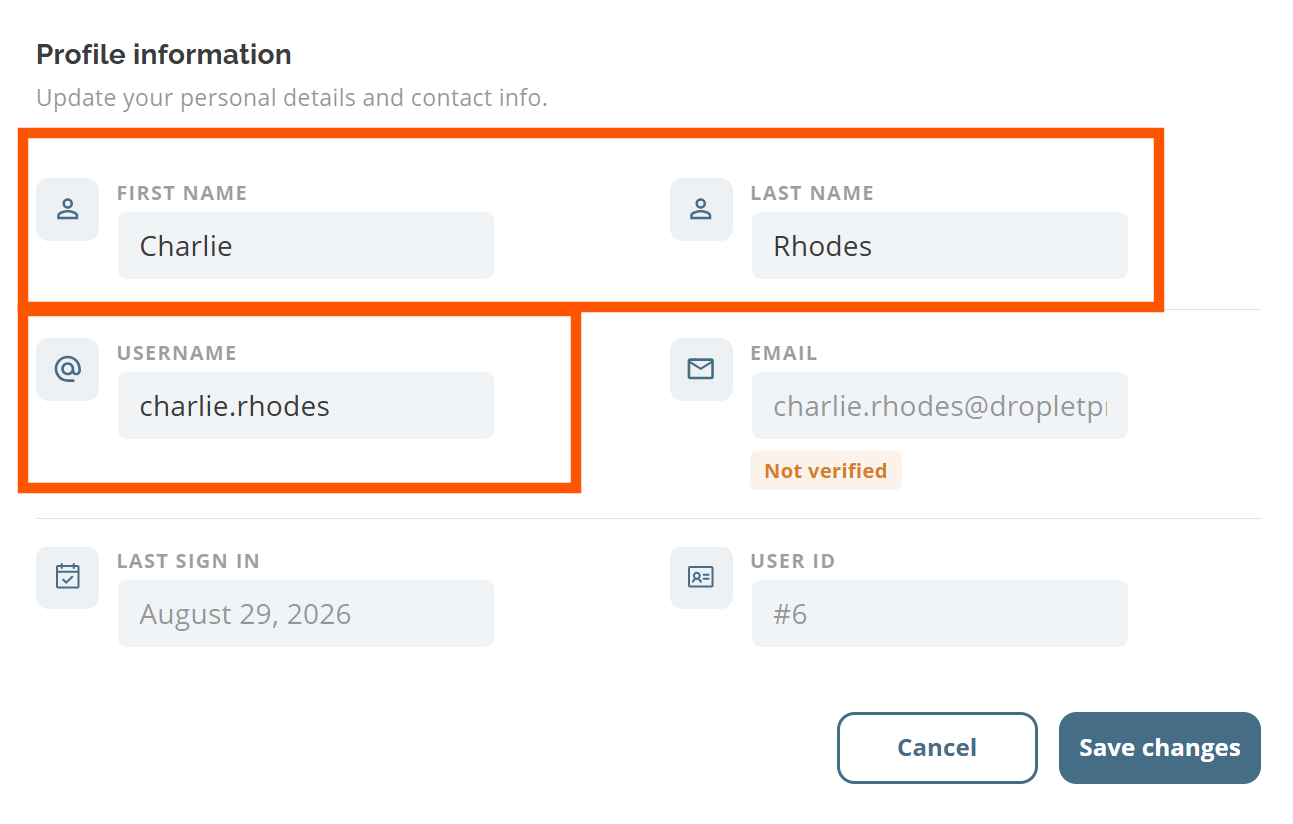
Edit profile form
Save changes
Click Save changes. You should see Profile updated successfully. Use Cancel or Cancel edit to leave without saving.
Change your avatar (optional)
On the profile header of the Profile information card, use the camera control (Change avatar) to pick an image file. The image must be a normal image type and no larger than 10 MB. Your new photo appears after upload completes.
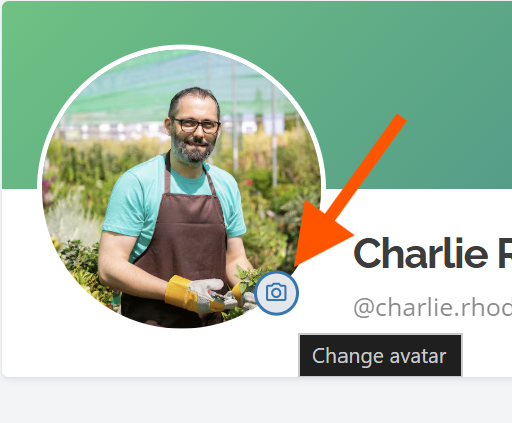
Change avatar control on the profile header
Username must be unique
Usernames are stored in a case-insensitive unique form. If a username is already taken, you will see an error and need to choose another.
Common questions
Why can't I edit my email?
Email is tied to your sign-in identity and is read-only on Account today. This may change in a future update. Contact support if you need help.
Where do I change my password?
Open Account actions from the settings icon on the Profile information card, then choose Change password. See Changing your password.
Related articles
Managing your Account
Changing your password
Was this helpful?
If you still have questions, contact us and we'll help you out.