Changing your password
If you signed up with email and password, you can change your password from Account. Your password is managed by a secure authentication service. dropletPRO does not store your password on its own servers.
Open Change Password
Go to Account. Click the settings icon (gear icon) on the Profile information card to open Account actions, then choose Change password.

Change password in Account actions
Enter your passwords
Fill in Current password, New password, and Confirm new password.
New password requirements
At least 6 characters
At least one uppercase letter
At least one lowercase letter
At least one number
At least one special character
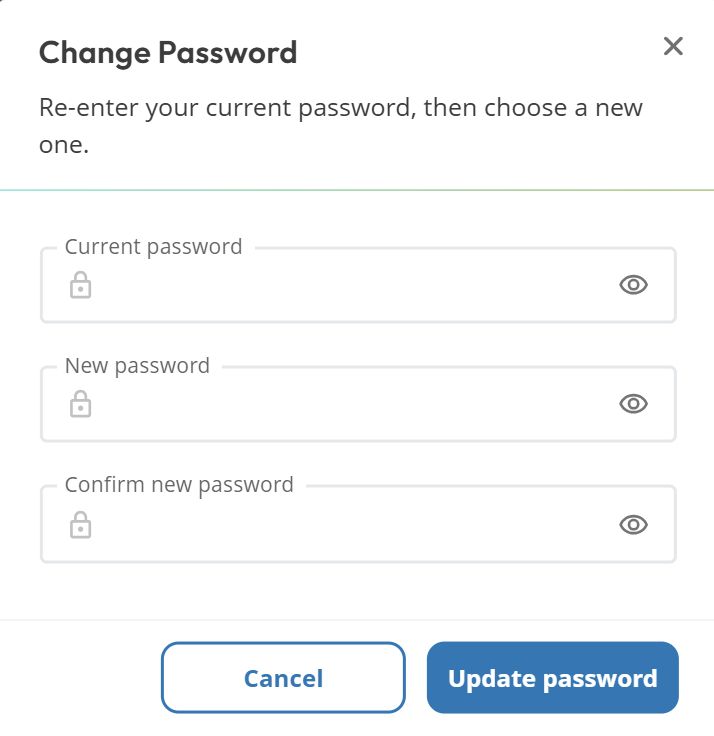
Change Password dialog
Update password
Click Update password. On success you will see Password updated successfully!
Forgot your current password?
Use Forgot password on the sign-in flow to receive a reset email. That path is separate from the Account change-password dialog.
Google or other sign-in methods
If you primarily sign in with Google (or another provider) and do not have an email/password credential, the Change password dialog may not apply. Use your provider's account settings or Forgot password only when you have a password-based sign-in.
Common questions
Why was my current password rejected?
The current password must match your existing sign-in password. If you mistype it, or your session needs a recent login, try again or use Forgot password.
Does changing my password log me out?
A successful update keeps you signed in with the new password for future sign-ins. If something fails, your previous password remains in effect.
Related articles
Managing your Account
Editing your profile
Is my payment information secure?
Was this helpful?
If you still have questions, contact us and we'll help you out.